Turn On SYNC Connectivity for Ford
Customer Connectivity Settings (CCS) allow your vehicle's modem to integrate with the Traknova Platform via the cloud. You can review or change these settings from the Settings menu on your vehicle's SYNC screen, under either Connectivity or Ford App Connect depending on your SYNC generation.
note
SYNC generations without a touchscreen don't have connectivity settings.
Change connectivity settings
Find your SYNC version below and follow the steps.
SYNC 4A
- Press the vehicle icon in the upper left corner of the SYNC screen.
- Press Settings.
- Select Connectivity.
- Select Connected Vehicle Functions.
- Switch vehicle connectivity to your preference (ON or OFF).
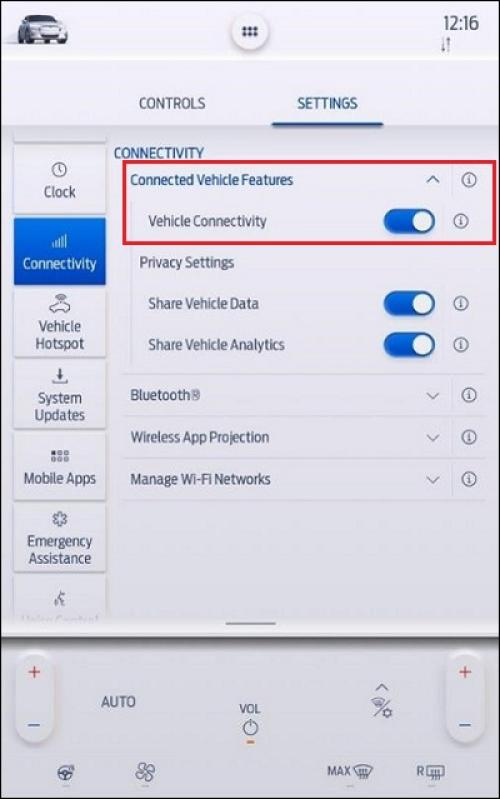
We recommend leaving connectivity ON so Traknova stays in sync with the vehicle.
SYNC 4
- Press Settings on the SYNC screen.
- Press Connectivity.
- Select Connected Vehicle Functions.
- Switch vehicle connectivity to your preference (ON or OFF).
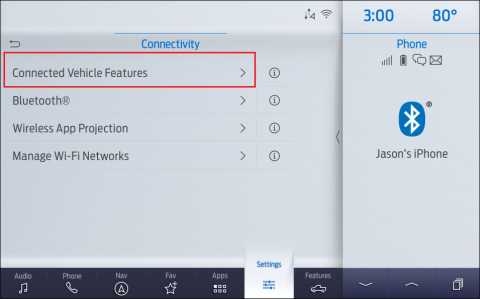
We recommend leaving connectivity ON so Traknova stays in sync with the vehicle.
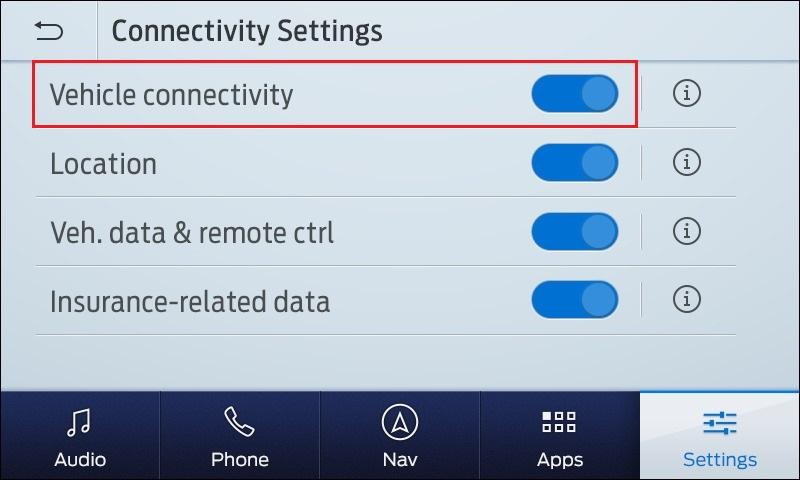
SYNC 3
- Turn on the vehicle.
- Tap Settings on the SYNC 3 screen.
- Select FordPass Connect.
- Tap Connectivity settings.
- Slide the switches ON to activate, or OFF to deactivate.
note
For Traknova to work fully, connectivity needs to be enabled on the vehicle and the vehicle needs to be linked in your Traknova account.