Setting up channels
Before you start receiving alerts, you need to tell Traknova where to send them. There are four channels available.
| Channel | How it works | Setup required? |
|---|---|---|
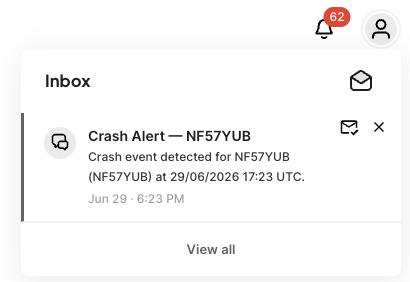
| In-App | Bell icon in the portal | No |
| Web Push | Push notificatinos | Yes |
| Alerts sent to your email address | Yes | |
| SMS | Text messages to your mobile | Yes |
Go to Account > Notifications to manage your channels.
Email
- Under Email Notifications, enter your email address and click Save.
- A 4-digit code is sent to that address. Enter it in the confirmation box.
- Once confirmed, your email address is active.
You can only have one confirmed address at a time. Adding a new one replaces the old one. You can add at most one new address per day.

SMS
- Under SMS Notifications, enter your mobile number (include the country code) and click Save.
- A 4-digit code is sent to that number. Enter it in the confirmation box.
- Once confirmed, your number is active.
The same limits apply as email — one confirmed number at a time, one new number per day.
To stop SMS alerts: Reply STOP to any alert text. This disables all your SMS notification subscriptions. You can re-enable them individually from the vehicle or account settings.

Browser notifications (Web Push)
- Under Browser Notifications, click Enable.
- Your browser asks for permission. Click Allow.
- Push notifications are now active for this browser.
Push notifications work even when the portal tab is in the background. They won't work if you've blocked notifications in your browser settings, or if you're using an older browser without web push support. Each browser and device needs to be enabled separately.

In-App
No setup needed. Alerts always appear in the bell icon in the top-right corner of the portal. A red badge shows how many unread notifications you have.