Notification history
The Notifications page gives you a full history of every alert on your account — what triggered it, when it went out, which channel it used.
Go to Dashboard > Notifications to open it.
This page requires the Notifications feature to be enabled on your account. If you can't see it, speak to your account admin.
The events table
| Column | What it shows |
|---|---|
| Notification | The alert type — e.g. "Over Speeding", "Door Opened" |
| Channel | Which channel the alert was sent through |
| Occurred At | When the event happened |
| Status | Delivered, pending, or failed |
Click a row to expand it and see the full detail — the exact delivery time, status, and any failure reason.
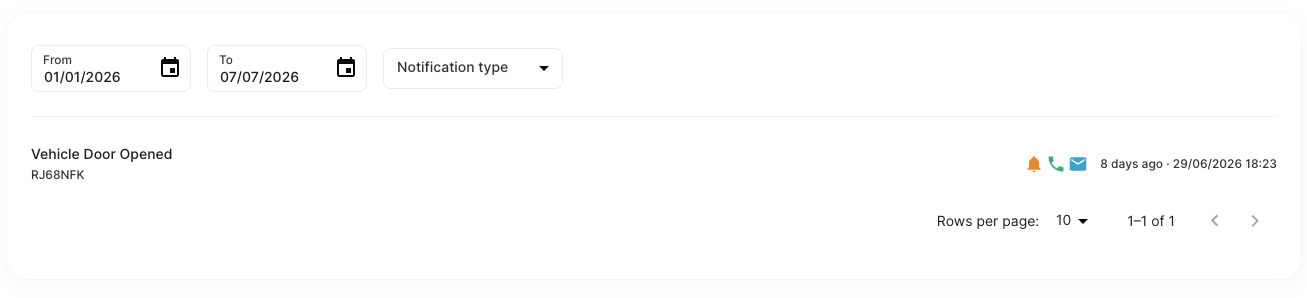
Filtering
Use the From and To date pickers to limit results to a specific period. Use the Channel and Type dropdowns to focus on a particular channel or alert type.
Per-vehicle history
You can also view notification history for a specific vehicle. Open the vehicle, go to the History tab, and you'll see the same event log filtered to that vehicle only.

In-app notifications (bell icon)
Alerts delivered to the portal appear in the bell icon in the top-right corner. A red badge shows how many unread notifications you have.
Mark as read — click the tick icon on a notification to mark it read.
Mark all as read — click Mark all as read at the top of the tray.
Delete — click the bin icon to remove a notification permanently.
New alerts appear automatically without needing to refresh the page.
In-app notifications are tied to your company account, not an individual user. Everyone logged into the account sees the same inbox.