Vehicle alerts
Each vehicle in your fleet can have its own notification settings. You choose which events trigger an alert and which channel each alert goes through.
Account-level master switch
Before configuring per-vehicle alerts, check the Vehicle Notifications section in Account > Notifications. There is a Vehicle alerts toggle — this is a company-wide switch. If it's off, no vehicle alerts will be sent for any vehicle on your account, regardless of per-vehicle settings.
Turn it back on from Account > Notifications if you want per-vehicle settings to take effect.

Opening notification settings for a vehicle
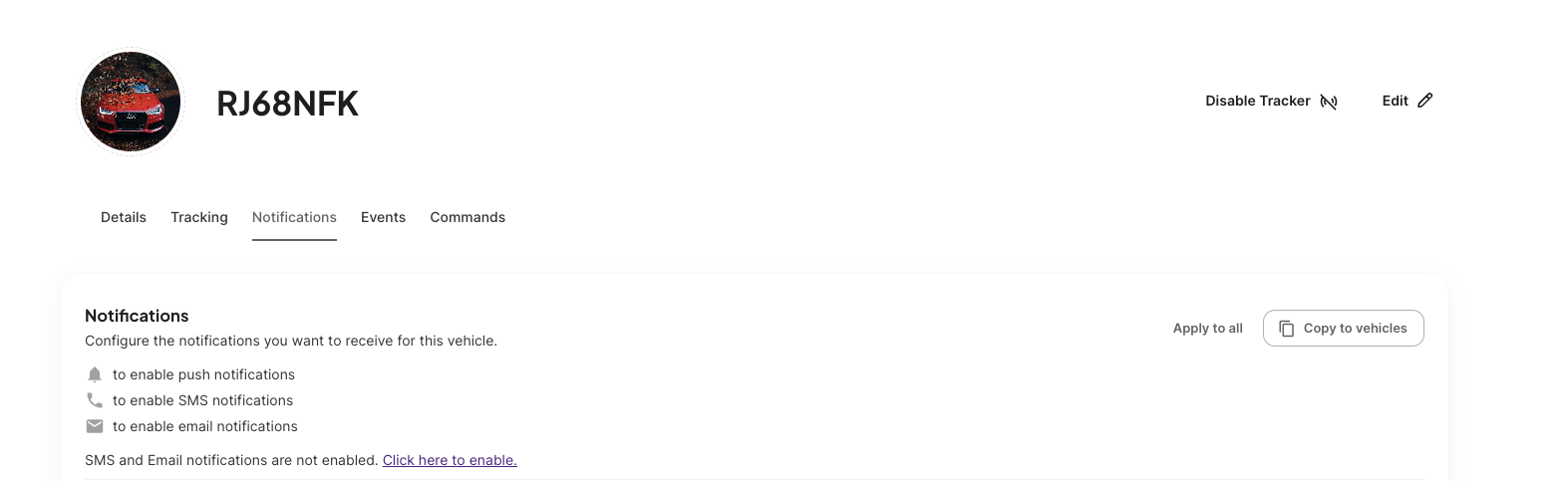
- Open the vehicle from the fleet list.
- Go to the Notifications tab.
You'll see a card for each available alert type. If a card is greyed out and shows Not available, that alert type has been turned off by your account admin.
Turning alerts on and off
Each card has a toggle switch. Turn it on to activate that alert for the vehicle, or off to stop it.
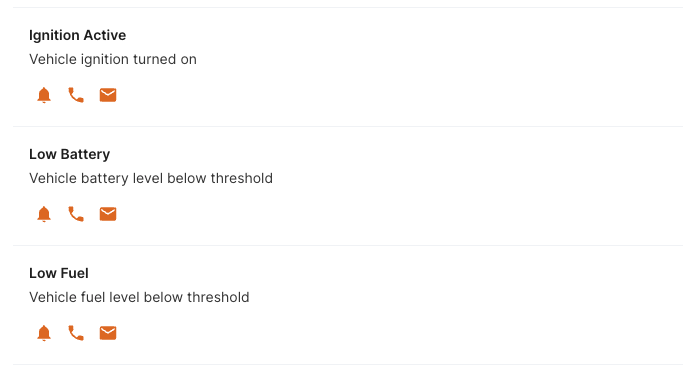
When you turn an alert on, you can choose which channels it uses — SMS, Email, Web Push, or In-App. You'll need the relevant channel set up in your account settings before alerts can be delivered there. See Setting up channels for instructions.
Changes take effect immediately. There's no Save button.
Available alert types
The types of alerts you will be able to configure will depend on your subscription tier and what type of device is configured for the vehicle.
| Alert | When it fires |
|---|---|
| Over Speeding | Vehicle speed exceeds the set threshold |
| Ignition On | Engine started |
| Door Open | A door is opened |
| Towing Detected | Vehicle is being moved without the ignition on |
| Crash Detection | Impact detected by the device |
| Unauthorised Movement | Vehicle moves outside approved hours (requires beacon) |
| Tracker Unplugged | GPS device loses power |
| Low Fuel | Fuel drops below the set threshold |
| Idle | Engine running but vehicle stationary for too long |
| Vehicle Moving | Vehicle starts moving |
| Geofence Entered / Exited | Vehicle crosses a geofence boundary |
Copying settings to other vehicles
To apply the same settings across your fleet:
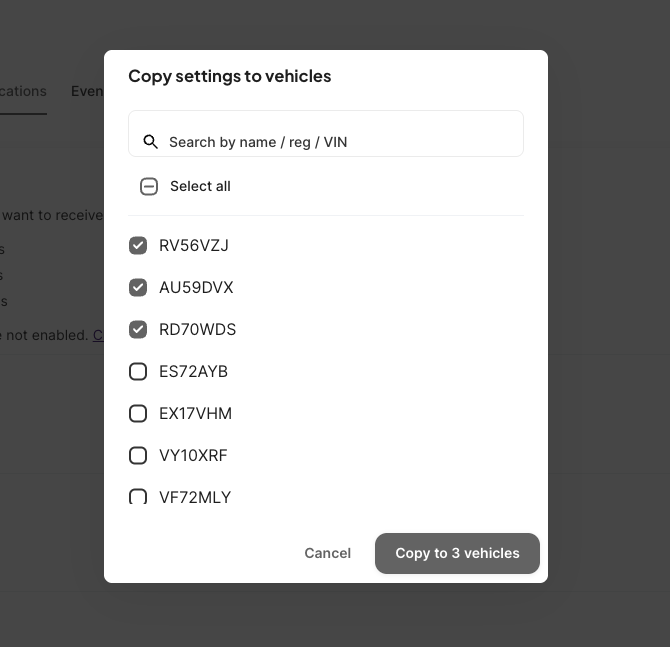
- Click Copy settings at the top of the notifications panel.
- Select the vehicles you want to copy to.
- Confirm.
The same alert types and channels will be applied to all selected vehicles.